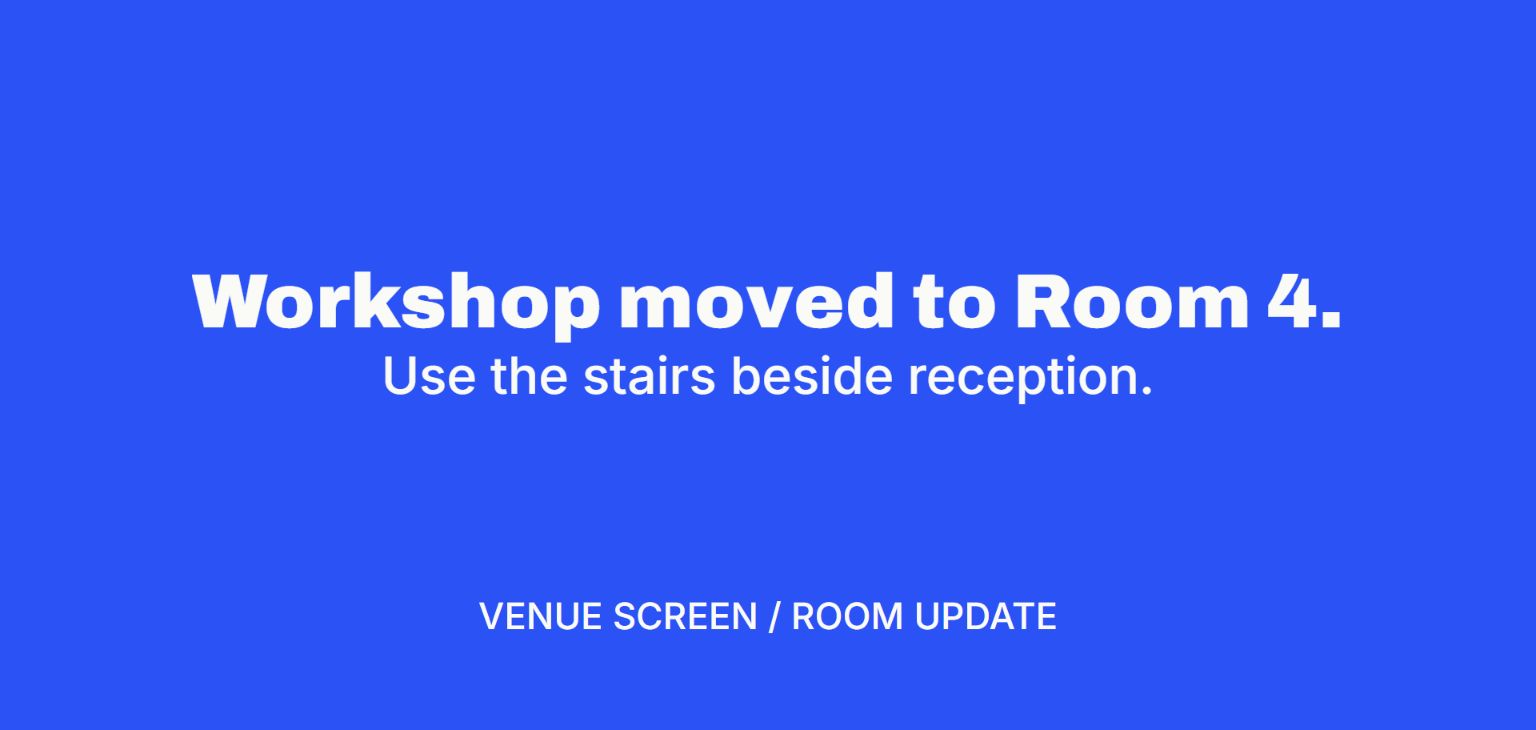
Compare what the audience sees, how quickly the message can be changed and whether someone must return to the screen. Write the action first. Add one detail only if it helps someone act.
Try a shorter message
Type a sample line to see how much space it takes. Check the actual TV from the back of the room.
Compare the options
| Method | Good fit | What to check |
|---|---|---|
| HDMI and a slide | An offline meeting room with a laptop already plugged in. | Easy to prepare and control in the room. Changes come from that laptop or a separate approved remote-control setup. |
| USB notice image | A stable welcome or instruction for a TV with image playback. | The file has to be replaced when the message changes. Test whether the TV can keep the image visible for the required time. |
| Screen mirroring | The room needs to see a live editor or the presenter’s workflow. | People may see other content on the mirrored screen. Check notification and display settings before the audience arrives. |
| Browser to browser | A short notice updated from another connected device. | Keep the display awake, online and in its display tab. You can then replace the selected message without mirroring your desktop. |
Working example · V U This
Best fit for changing a short message from another room
In V U This, pair the TV and choose Text for one line or Announcement for a headline with a detail and optional footer. Choose Show now, then check it at viewing distance. If the plan changes, update the still-connected display from your phone or laptop. Use a local slide when the room is offline.
Try this in V U This